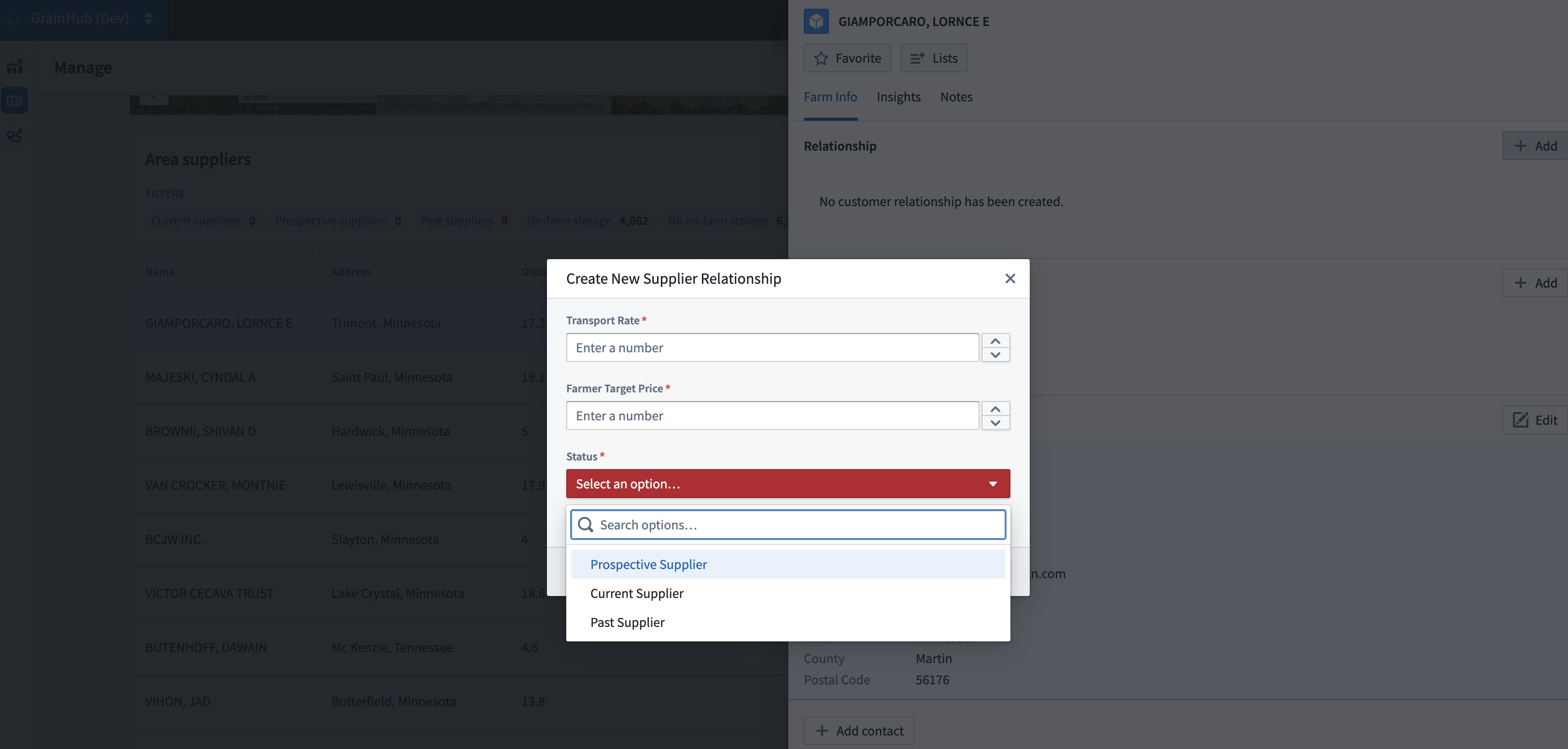
After selecting a contact from the Manage tab, click the +Add button to the right side of Relationship. This opens a window that allows you to customize your interaction with this specific supplier. The Create New Supplier Relationship box allows you to enter in your goal Transportation Rate, the Farmer Target Price, as well as to select the Status of your relationship with this supplier — Prospective Supplier, Current Supplier, or Past Supplier.
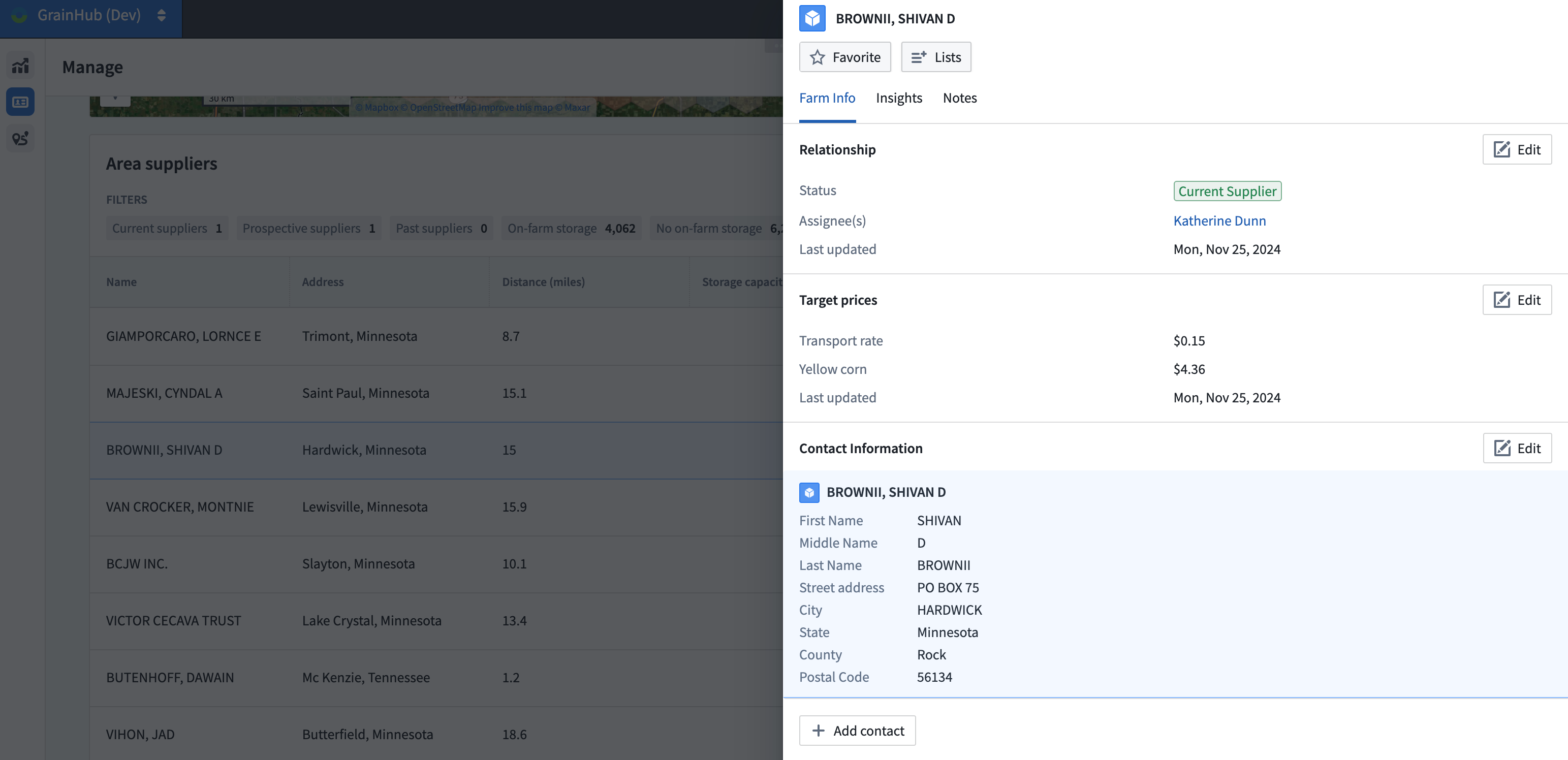
After completing the Create New Supplier Relationship box, click the green Submit button to incorporate these updates into this supplier’s information. As shown in the image below, this newly added Relationship information is now showing.
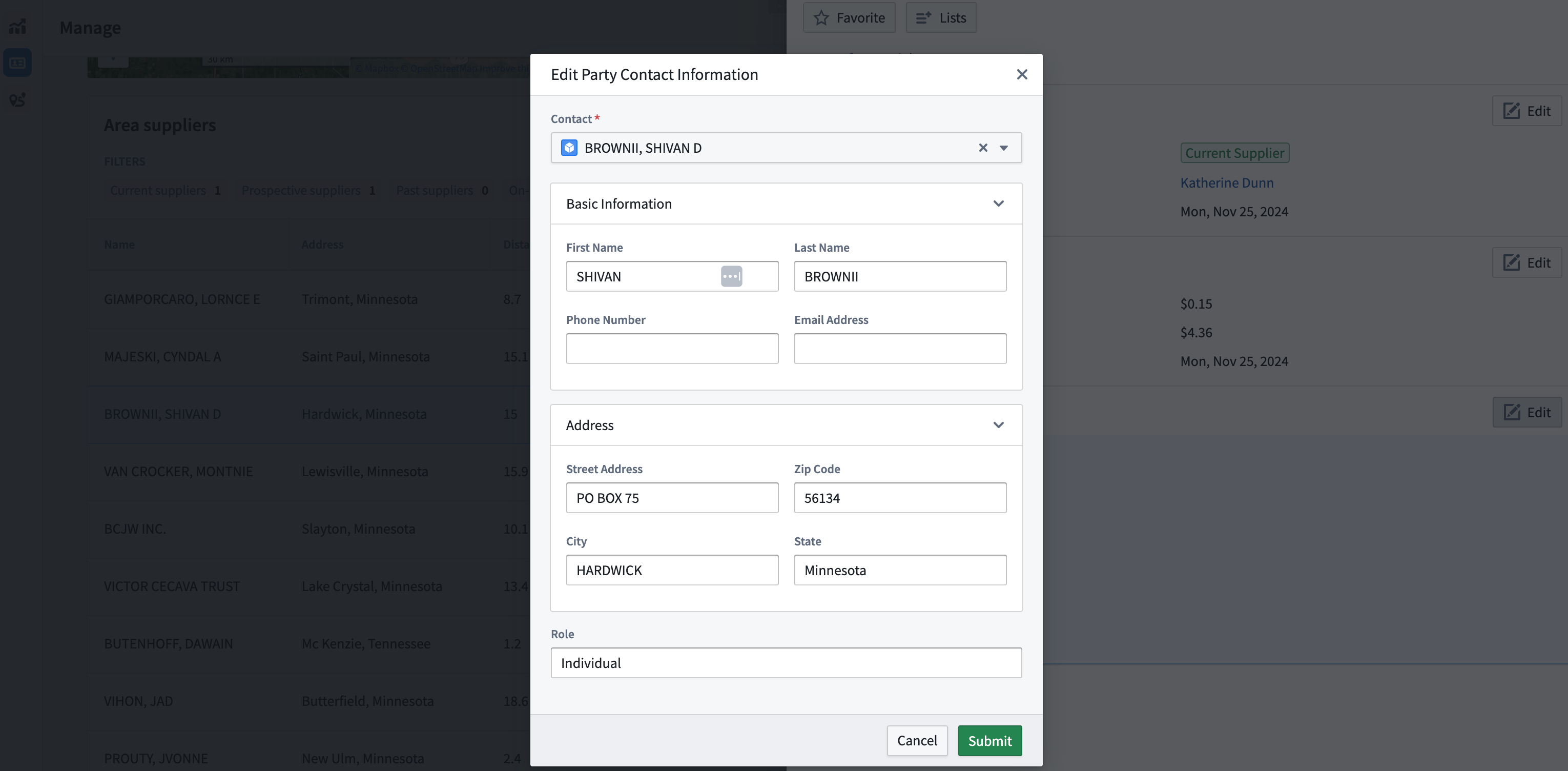
The Contact Information can be updated as needed by clicking on the Edit button to the right of this section, which will open an editing box. Once updates have been made, click the green Submit button to implement your changes. Please note that this contact information is only visible within your company, and cannot be accessed by others outside of your organization.
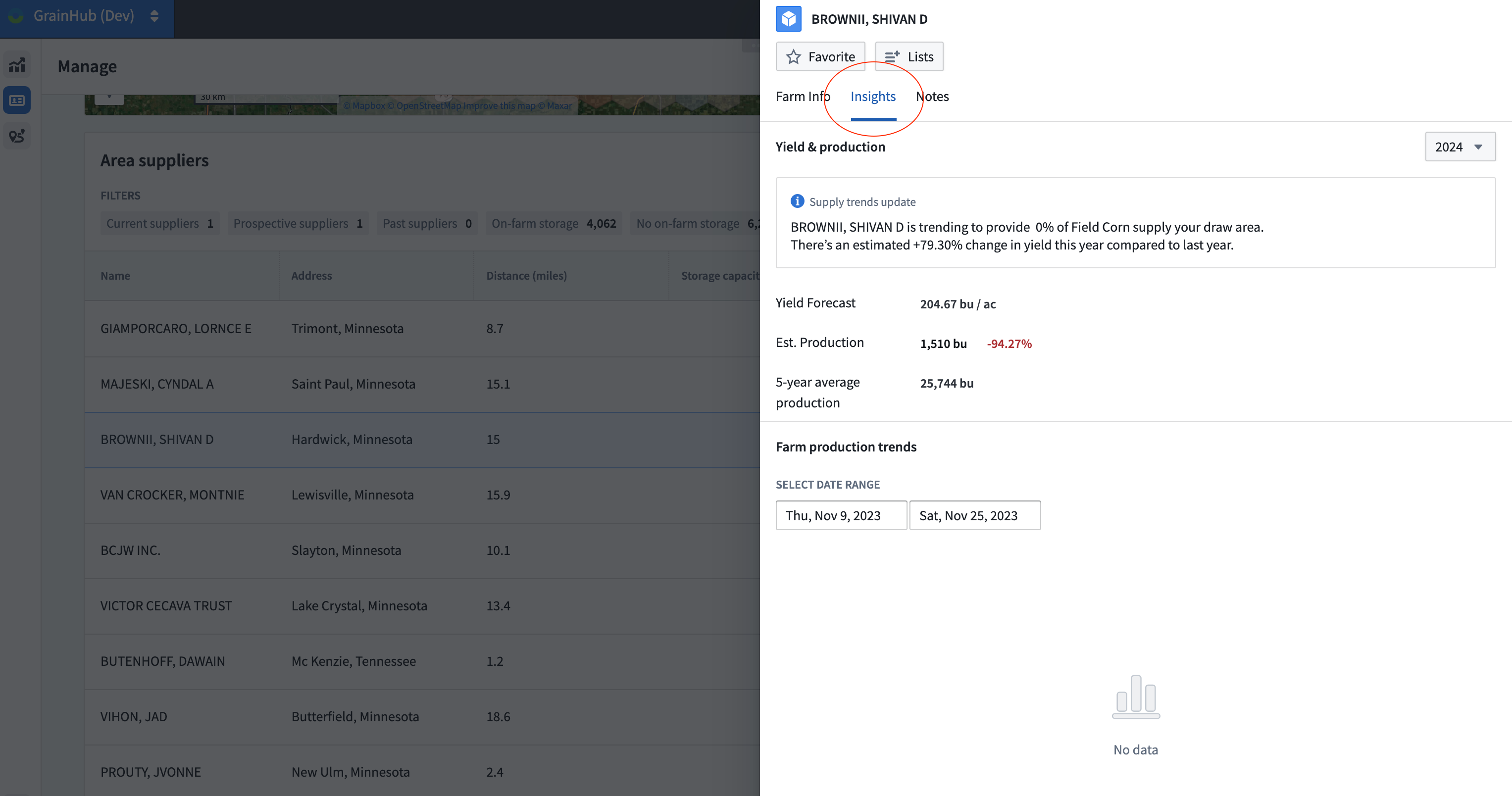
From here, dive deeper into this specific farm by clicking on the Insights menu item. On the Insights bar you can view Yield Forecast, Estimated Production, and 5-year Average Production data. A graph showing the supplier’s Farm Production Trends is customizable based on selecting your desired date range for results.
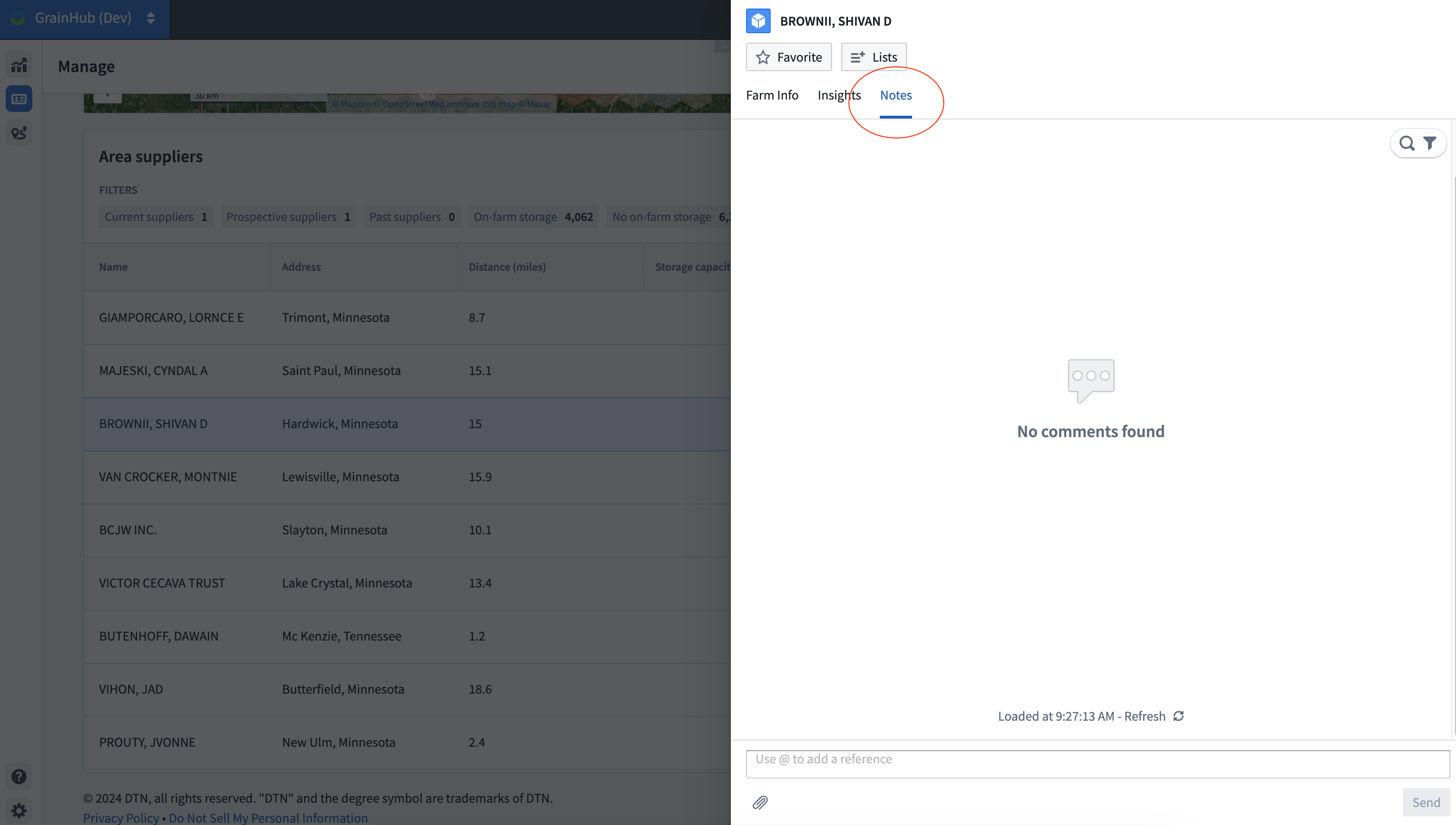
By clicking on the Notes tab, you have the opportunity to keep a running list of notes, comments, and commentary. This is your place to keep updated internal records only visible to others within your organization.